Do you know what company information your employees can access through Copilot? Whether everyone has the right licence? Or how much your team relies on AI-generated answers when making business decisions?
These aren’t just IT questions. They’re business considerations that affect your data, your employees and the value you get from the technology you’re investing in.
Whether you’re planning to introduce Microsoft Copilot or already using it, there are five important things worth getting right.
Understand What Company Information Copilot Can Access
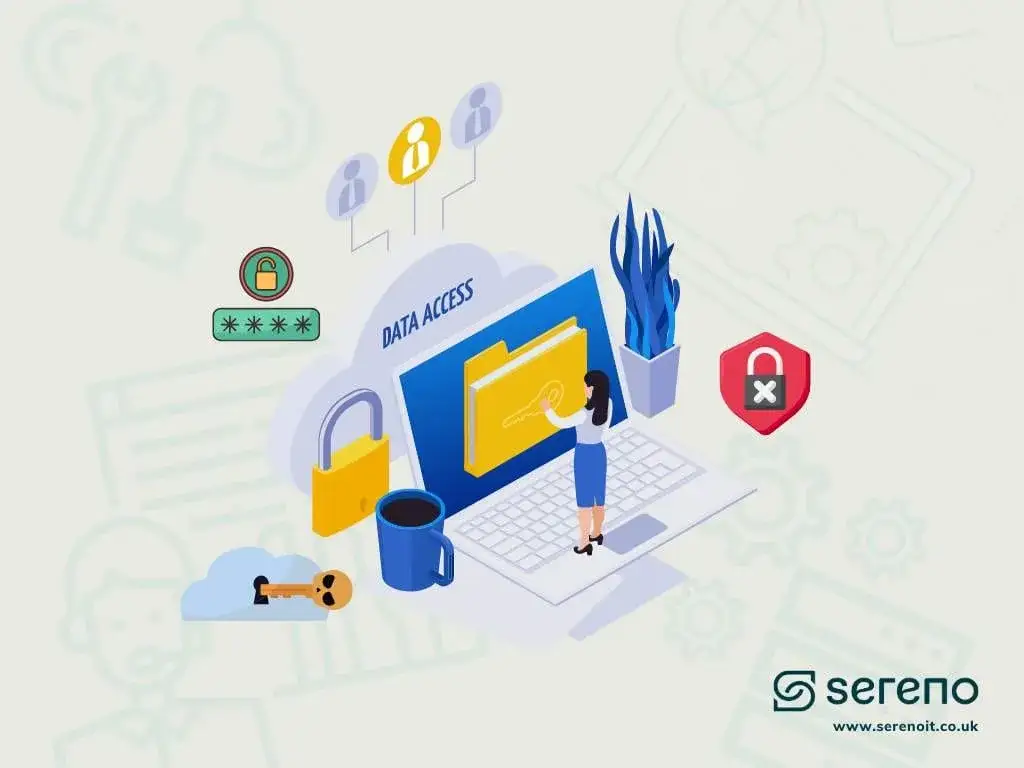
Imagine your finance team stores confidential reports in SharePoint. The files were originally intended for senior management, but over time, other employees were given access for different projects.
Some of those employees have since changed roles, yet their access hasn’t been updated.
Now, someone who no longer needs to see those reports could potentially find or summarise them using a Copilot experience with access to relevant organisational information.
Copilot hasn’t bypassed your security. It’s working with the permissions already in place.
Microsoft Copilot respects existing access permissions. It doesn’t automatically give employees permission to view documents they’re not authorised to access.
However, if information has already been shared more widely than intended, Copilot can make it easier for people with that access to find.
Why Your Existing Access Permissions Matter
Think about the information your business stores in Microsoft 365:
-
Financial reports and budgets
-
Employee salaries and HR records
-
Customer contracts and personal information
-
Business plans and confidential proposals
-
Documents shared through Teams and SharePoint
Would you be confident that access to this information still reflects who genuinely needs it?
As your business grows, employees move between departments, responsibilities change and information gets shared with new people.
It’s easy for permissions to build up over time without anyone revisiting them.
This is sometimes called privilege creep, where employees gradually retain access they no longer need.
Before expanding Copilot use, it’s worth asking your IT team or provider to review access to important company information, particularly sensitive SharePoint sites and shared documents.
You can learn more in our guide to what privilege creep is and how to prevent it.
Getting permissions right doesn’t just help with Copilot. It helps protect your information across Microsoft 365.
Set Clear Guidelines for How Your Team Uses Copilot
Having the right permissions is one part of using Copilot responsibly. The other is understanding what employees are actually doing with it.
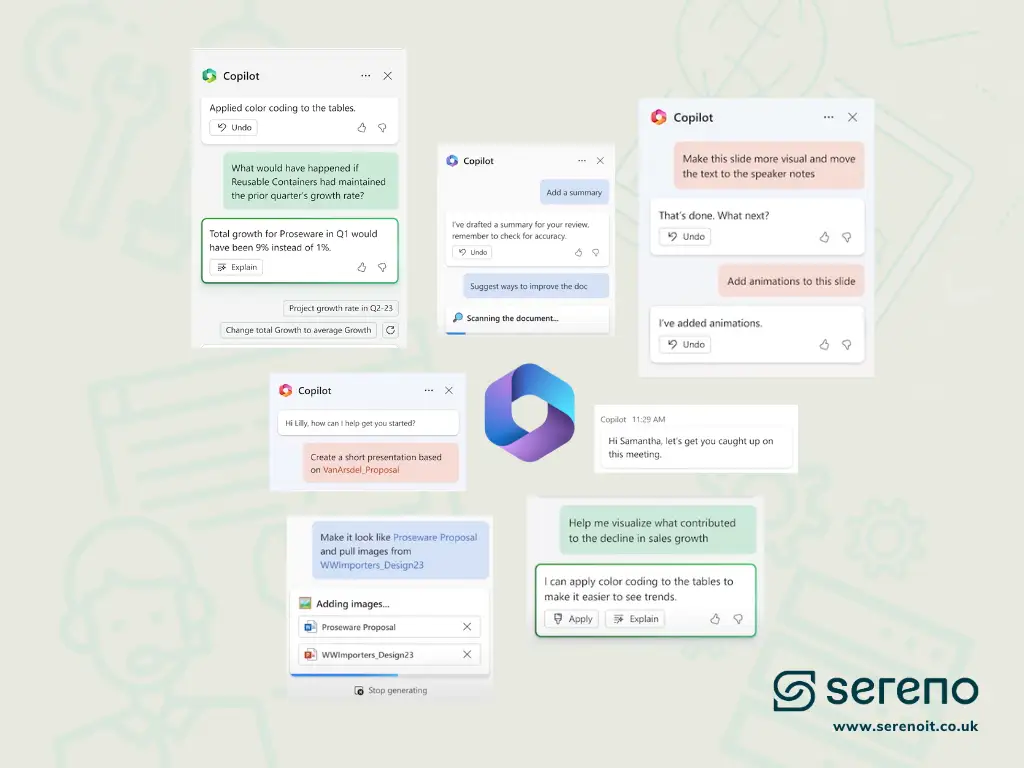
Your sales team might use Copilot to improve customer emails. Your operations manager could turn meeting discussions into action lists. Your marketing team might use it to organise feedback or prepare the first draft of a report.
These are practical ways Copilot can help employees work more efficiently.
But without clear guidelines, staff may have different ideas about what’s acceptable.
One employee might use an approved Copilot account to draft routine communications. Another might upload confidential information without understanding the appropriate safeguards. Someone else might use a personal AI account because it’s already familiar to them.
The challenge isn’t necessarily that employees are deliberately taking risks. They may simply not know where the boundaries are.
What Your AI Usage Policy Should Cover
You probably already have company policies for email, internet use and business devices.
AI deserves similar attention.
A practical AI usage policy should explain:
-
Approved tools: Which AI applications and accounts employees can use for work.
-
Appropriate uses: The types of tasks AI can help with.
-
Sensitive information: What employees can share and what requires additional protection.
-
Human oversight: Which AI-generated work needs checking or approval.
-
Responsibilities: Who employees should speak to if they’re unsure about using AI for a particular task.
For example, you might encourage employees to use Copilot to improve the wording of routine emails while requiring additional care when those emails involve confidential customer information.
The guidance doesn’t have to be complicated. It should be clear enough for people across your business to understand and follow.
And while a policy establishes expectations, appropriate technical controls can help reinforce them.
The aim is to give your team the confidence to use Copilot productively, without leaving important decisions about business information to individual judgement alone.
Choose the Right Copilot Licences for Your Business
Once you’ve considered how employees should use Copilot, the next question is whether they have the right capabilities for their roles.
It’s tempting to purchase paid licences for everyone so the whole team can get started.
But does everyone really need the same features?
Someone in administration might mainly use AI to rewrite emails, brainstorm ideas or research general information.
A department manager might need help summarising meetings, working with company documents and finding relevant information across Microsoft 365.
Both employees could benefit from Copilot, but their requirements are different.
Understand Your Copilot Licensing Options
Microsoft offers different Copilot experiences for business users.
Microsoft Copilot Chat is available at no additional licence cost with eligible Microsoft 365 subscriptions. It can help with tasks such as researching information, generating content and analysing files that users provide.
Depending on the application and configuration, some experiences can also work with supported organisational context.
Paid Microsoft Copilot licences provide broader capabilities, including the ability to work across more organisational information, such as permitted emails, meetings, documents and conversations.
The exact features available depend on your subscriptions, licence assignments and Microsoft 365 settings.
A paid licence doesn’t automatically mean every employee will make full use of those additional capabilities.
Match Licences to Your Team’s Needs
A better starting point is understanding what people want Copilot to help them achieve.
For example:
-
Your sales manager may want help preparing for customer meetings and reviewing relevant conversations.
-
Your administrator may mainly need assistance drafting everyday communications.
-
Your managing director may benefit from finding information across documents and meetings they already have permission to access.
Once you understand those needs, it’s easier to choose appropriate licences and decide where the additional investment makes sense.
You can also assess whether employees are actually using the capabilities they’ve been given.
Rather than purchasing licences based on assumptions, make the decision around the tasks you want to improve and the value you expect to gain.
Because Microsoft’s licensing options and features change, it’s worth checking the latest Copilot licensing guidance before making purchasing decisions.
Know What Goes Into Copilot and Check What Comes Out
Even with clear policies and suitable licences, there’s another important consideration: the information employees give Copilot and how they use the answers it provides.
Both can affect your business.
Be Careful What Information You Share
Imagine someone in your team asks Copilot to summarise a customer complaint, review a supplier agreement or analyse an internal financial report.
These can be legitimate business tasks.
But whether they’re appropriate depends on the information involved, the Copilot experience being used and your company’s policies.
Microsoft provides enterprise data protection for its covered business Copilot experiences when employees use eligible organisational accounts.
Microsoft states that prompts, responses and organisational data accessed through Microsoft Graph are not used to train foundation models.
That’s an important protection, but it doesn’t mean every AI platform, personal account or third-party connection handles information in the same way.
It also doesn’t remove the need for your business to decide which information employees can use with AI.
Your team should understand the difference between an approved work tool and a personal AI service, particularly when handling confidential company or customer information.
You can find more information in Microsoft’s enterprise data protection guidance.
Why AI-Generated Answers Still Need Checking
Now imagine your operations manager uses Copilot to analyse customer feedback.
Copilot produces a summary suggesting that customers are unhappy with a particular service. The response looks convincing, so your management team starts discussing changes.
But what if some important feedback was missing? Or the AI misunderstood part of the information?
You could end up making a business decision based on an incomplete picture.
Copilot can help summarise and analyse information, but it can also make mistakes, overlook context or present uncertain information confidently.
That’s why the level of review should depend on how the information will be used.
A routine internal email might only need a quick check.
Financial analysis, advice to customers or recommendations that could influence important business decisions deserve more careful verification.
It’s also worth considering whether AI-generated content should go directly to customers or whether an employee should review it first.
AI can help people make better use of information, but your business remains responsible for the decisions made from it.
Review Your Microsoft 365 Security Settings
Earlier, we looked at how Copilot works with your existing access permissions.
Understanding who can access your information is the starting point. You also need to know whether your Microsoft 365 settings are helping protect it.
For example, your company may have a policy telling employees not to share confidential documents. But does your Microsoft 365 environment support that policy?
Microsoft 365 includes security controls that can help businesses manage access, sharing and sensitive information.
You don’t need to understand every technical feature yourself, but it’s useful to know what your IT team or technology provider should be reviewing.
Which Microsoft 365 Security Controls Should You Review?
File and folder permissions
These determine who can access documents, SharePoint sites and Teams content.
Regular reviews help make sure employees can access what they need without retaining unnecessary permissions.
Sharing settings
Microsoft 365 makes it easy to share files with colleagues and, where permitted, people outside your organisation.
Reviewing sharing arrangements can help identify old links, unnecessary external access and information that may be available more widely than intended.
Sign-in security
Protecting employee accounts is another important part of protecting company information.
Measures such as multifactor authentication help reduce the risk of unauthorised access, including attempts involving stolen passwords.
Sensitivity labels
Depending on your Microsoft 365 licensing and configuration, sensitivity labels can help your business classify and protect information.
For example, certain documents may be labelled confidential and given additional protections.
Data loss prevention
Microsoft Purview Data Loss Prevention (DLP) provides controls that can help restrict certain sensitive information from being processed in supported Copilot interactions.
These protections depend on the licences available, the policies configured and the specific features supported in your environment. They shouldn’t be assumed to cover every type of content or AI interaction automatically.
Microsoft explains these options in its data loss prevention guidance for Copilot.
What Should Your Business Do Next?
You don’t need to become a Microsoft 365 expert to make informed decisions about Copilot.
A useful starting point is to understand how your business currently works, what your employees need and whether the right safeguards are in place.
There are three practical steps you can take.
-
1. Review access to your important information
Ask your IT team or provider when permissions and sharing arrangements were last reviewed, particularly for confidential documents and SharePoint sites.
-
2. Speak to employees about AI usage
Find out which AI tools they’re using, what tasks they want help with and whether they understand your company’s expectations.
-
3. Review your Microsoft 365 setup before expanding Copilot
Check that your security settings and licensing decisions support the way you want employees to use the technology.
These conversations can help you identify potential gaps without immediately committing to additional software or major technical changes.
How Can a Copilot Readiness Assessment Help?
You might be thinking, “We’re already using Microsoft 365, but I’m not entirely sure how our permissions or security settings are configured.”
That’s where a Copilot Readiness Assessment can help.
Rather than guessing whether your business is ready, an assessment gives you a clearer understanding of your current Microsoft 365 environment and any improvements worth considering before expanding Copilot use.
At Sereno IT, our Copilot Readiness Assessment & Implementation service follows three separately approved stages:
Assess: We review your Microsoft 365 permissions, sharing arrangements, relevant security settings, intended Copilot use and licensing requirements. You receive a plain-English report with findings and recommendations. No changes are made during this stage, and you don’t need Copilot licences to begin the assessment.
Secure: Where improvements are needed, we implement the changes you’ve agreed to and document the relevant controls and policies.
Enable: We configure the agreed Copilot licences, test the initial setup and provide introductory resources to help your team get started.
Each stage is scoped, quoted and approved separately, so you can understand the findings and decide what further work makes sense for your business.
The service is a one-off readiness and implementation project, rather than an ongoing monitoring or dedicated hands-on training programme.
What If Your Business Uses Other AI Tools Too?
Copilot Readiness focuses on preparing your Microsoft 365 environment for Copilot.
But your employees might also be using ChatGPT, Claude or other AI platforms.
That’s where broader AI Governance becomes relevant. It looks at how your business manages AI use across different tools, including policies, responsibilities, approved applications and appropriate controls.
Both are worth considering, but they address different needs.
Frequently Asked Questions
Can Microsoft Copilot access confidential company information?
Yes, if an employee already has permission to access that information and their Copilot experience supports retrieving it.
Copilot doesn’t automatically bypass Microsoft 365 permissions. However, information that’s been shared too widely may become easier for people with existing access to discover.
Is Microsoft Copilot safe for business use?
Microsoft provides enterprise security and data protection features for its business Copilot experiences.
However, safe use also depends on how your Microsoft 365 environment is configured, what employees are allowed to access and how AI-generated information is reviewed.
Does Microsoft use our Copilot information to train AI models?
Microsoft states that prompts, responses and organisational data accessed through Microsoft Graph in its covered business Copilot experiences are not used to train foundation models.
Your business should still use approved work accounts and review the data-handling terms of other AI tools and connected services.
Does every employee need a paid Copilot licence?
No. Eligible Microsoft 365 subscriptions include Copilot Chat capabilities, while broader access to organisational information and additional features generally require suitable paid licensing.
The right choice depends on what each employee needs Copilot to do.
Is a Copilot Readiness Assessment useful if we’re already using Copilot?
Yes. A review can help identify outdated permissions, inappropriate sharing arrangements, security gaps and licensing decisions that may not have been considered when Copilot was first introduced.
Make Microsoft Copilot Safer for Your Business
Microsoft Copilot can help your team save time and work more efficiently. But using it safely means making sure your business information is protected and your employees understand how to use the technology responsibly.
From reviewing who can access confidential information to setting clear employee guidelines, choosing the right licences and checking AI-generated answers, each of these steps plays a part in reducing potential risks.
Whether you’re introducing Copilot for the first time or already using it, reviewing your Microsoft 365 permissions and security settings is a sensible place to start.
At Sereno IT, our Copilot Readiness Assessment & Implementation service helps you understand your existing Microsoft 365 environment, identify potential security risks and make agreed improvements before enabling Copilot for your team.
Understand your current setup, identify what needs attention and get a clear quote for the next steps.
Written by
Elliot Bath
AI & Automation Lead
Part of the Sereno IT team helping growing UK businesses make confident, jargon-free technology decisions. Read more microsoft 365 guidance in our Microsoft 365 library.